Present and late
Present ($) and Late ($) bill the lesson. Present, use make-up and Late, use make-up spend a make-up credit instead of billing it again.
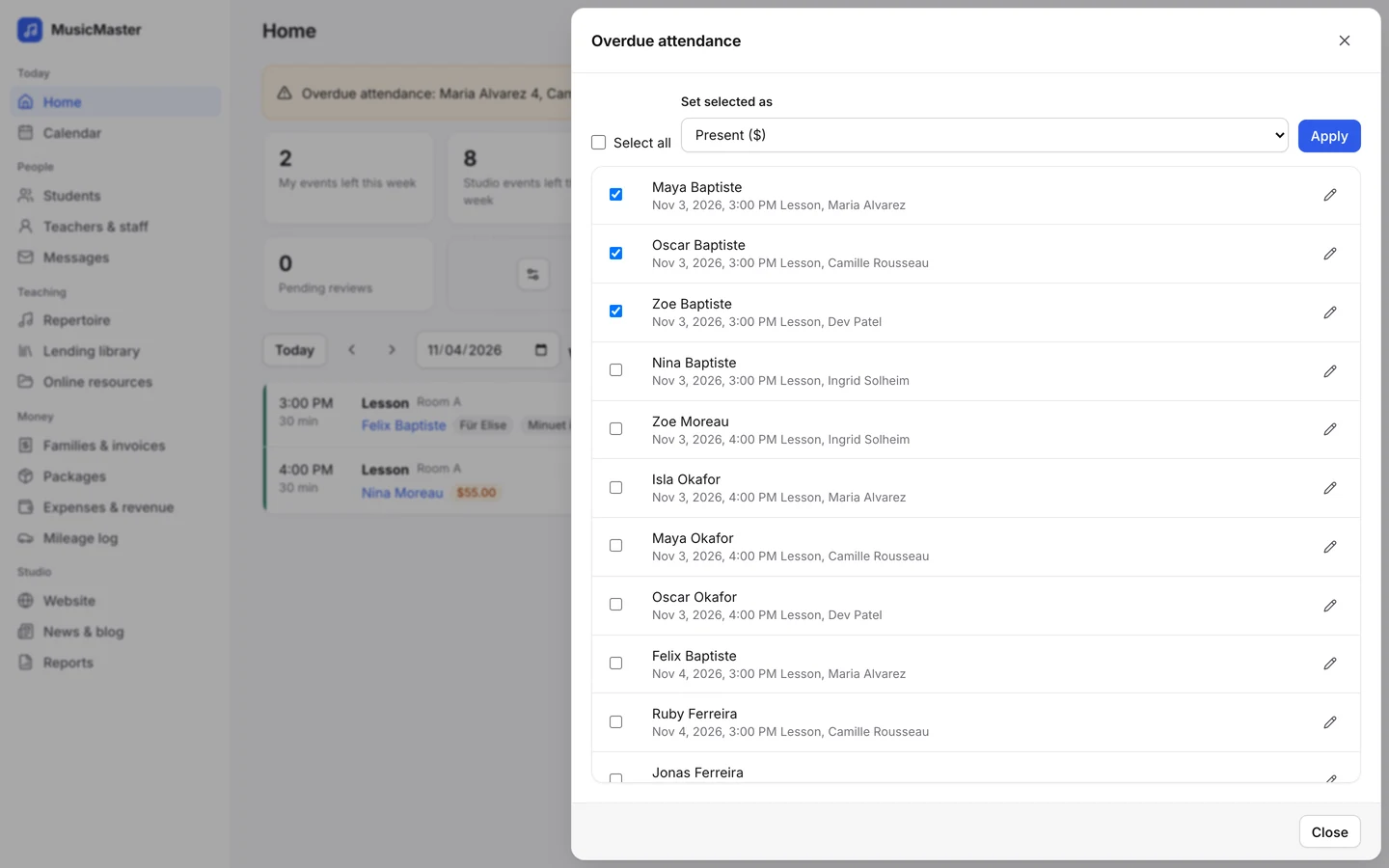
Ten statuses decide what is billed, what is credited and what becomes a make-up lesson, so one tap after each lesson keeps every family’s account right.

Flexible attendance
From today’s agenda, the calendar or a student’s page, one lesson or a whole day at a time.

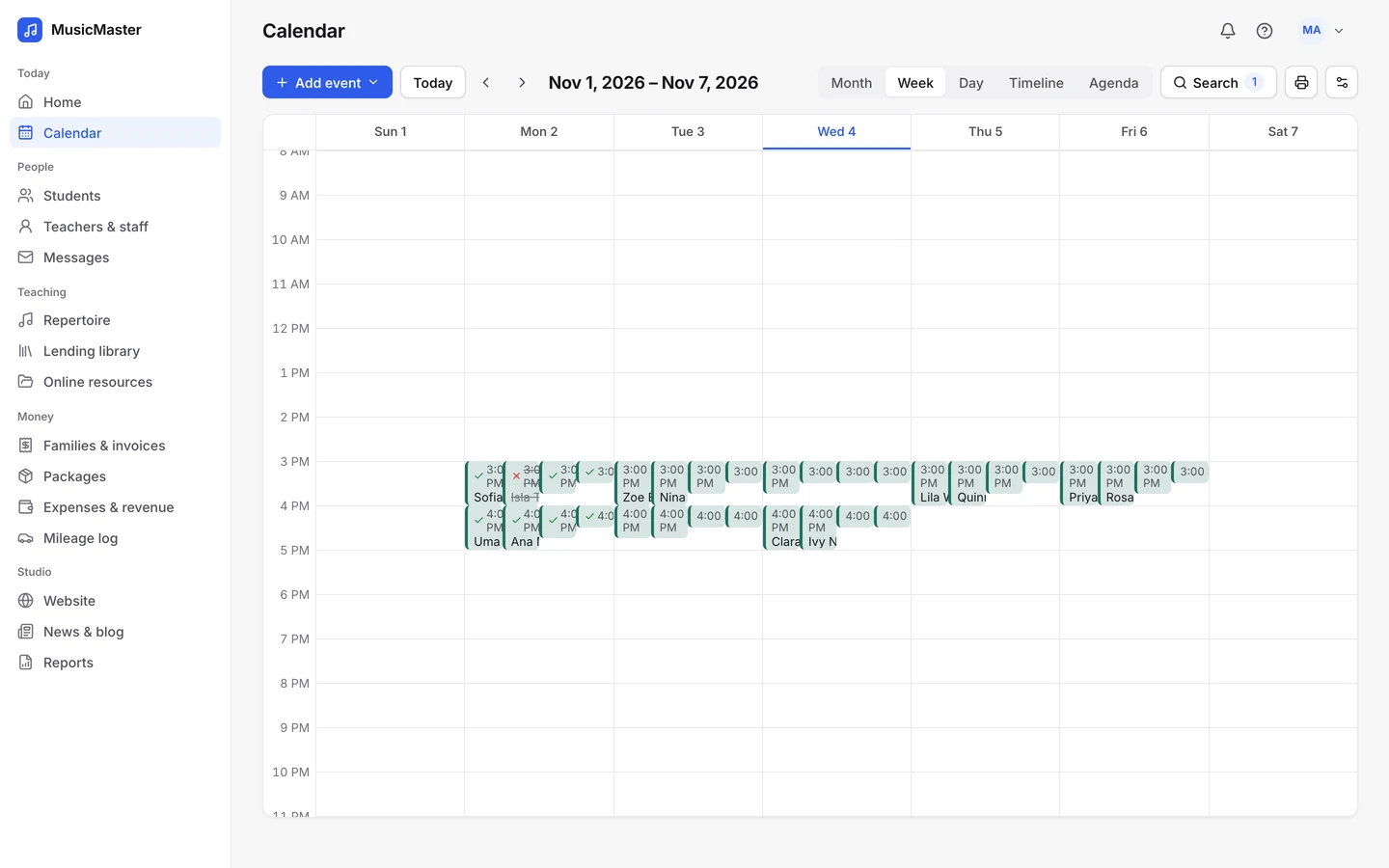
Take attendance beside each of today’s lessons on the home page.

Tick the lessons that are done and set them all as Present ($) together.

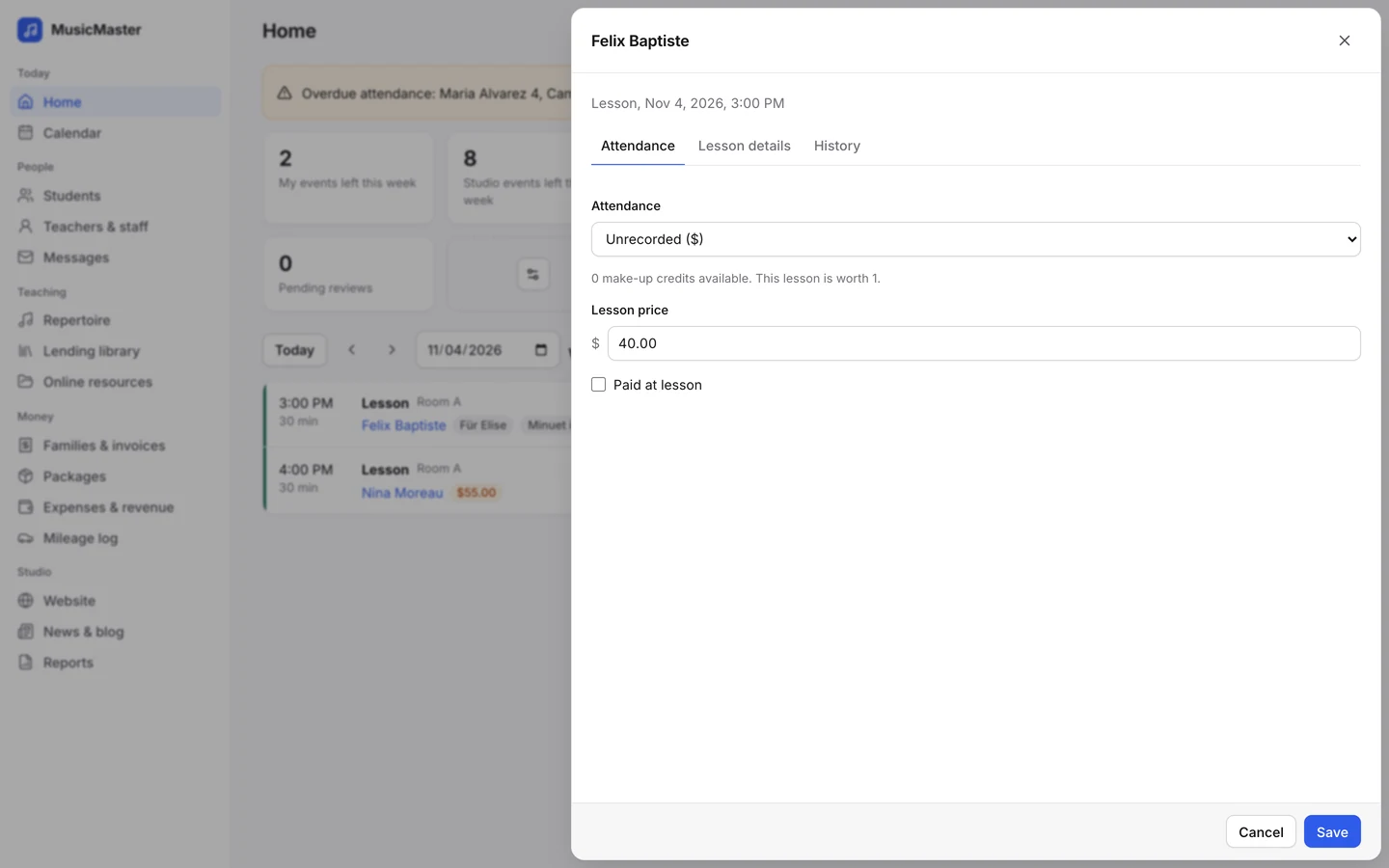
Set the status, change the price and write lesson notes in one drawer.
Sonely is a web app, so the computer at the front desk and the laptop in your teaching room both work. Families use the portal in their phone’s browser.
Lesson notes
Each lesson has notes for the student and family, and private notes only teachers see. Start from a template, look back at earlier notes in the History tab, and email the notes to the student or parent when you save.
Families read them in the family portal, under their attendance records.
Ten statuses
Besides Unrecorded there are ten statuses. The ones marked ($) are billed.
Present ($) and Late ($) bill the lesson. Present, use make-up and Late, use make-up spend a make-up credit instead of billing it again.
Absent, notice given takes the charge off. Absent, no make-up ($) bills it. Absent, issue make-up ($) bills it and gives a make-up credit. Absent, use make-up spends a credit.
When you cancel, Cancelled, issue make-up ($) bills the lesson and gives a credit, and Cancelled takes it off the bill.
Took cash or a cheque at the lesson? Tick Paid at lesson and the payment is recorded with the attendance.
Present ($) and Late ($) bill the lesson. Present, use make-up and Late, use make-up spend a make-up credit instead of billing it again.
Absent, notice given takes the charge off. Absent, no make-up ($) bills it. Absent, issue make-up ($) bills it and gives a make-up credit. Absent, use make-up spends a credit.
When you cancel, Cancelled, issue make-up ($) bills the lesson and gives a credit, and Cancelled takes it off the bill.
Took cash or a cheque at the lesson? Tick Paid at lesson and the payment is recorded with the attendance.
Make-up credits
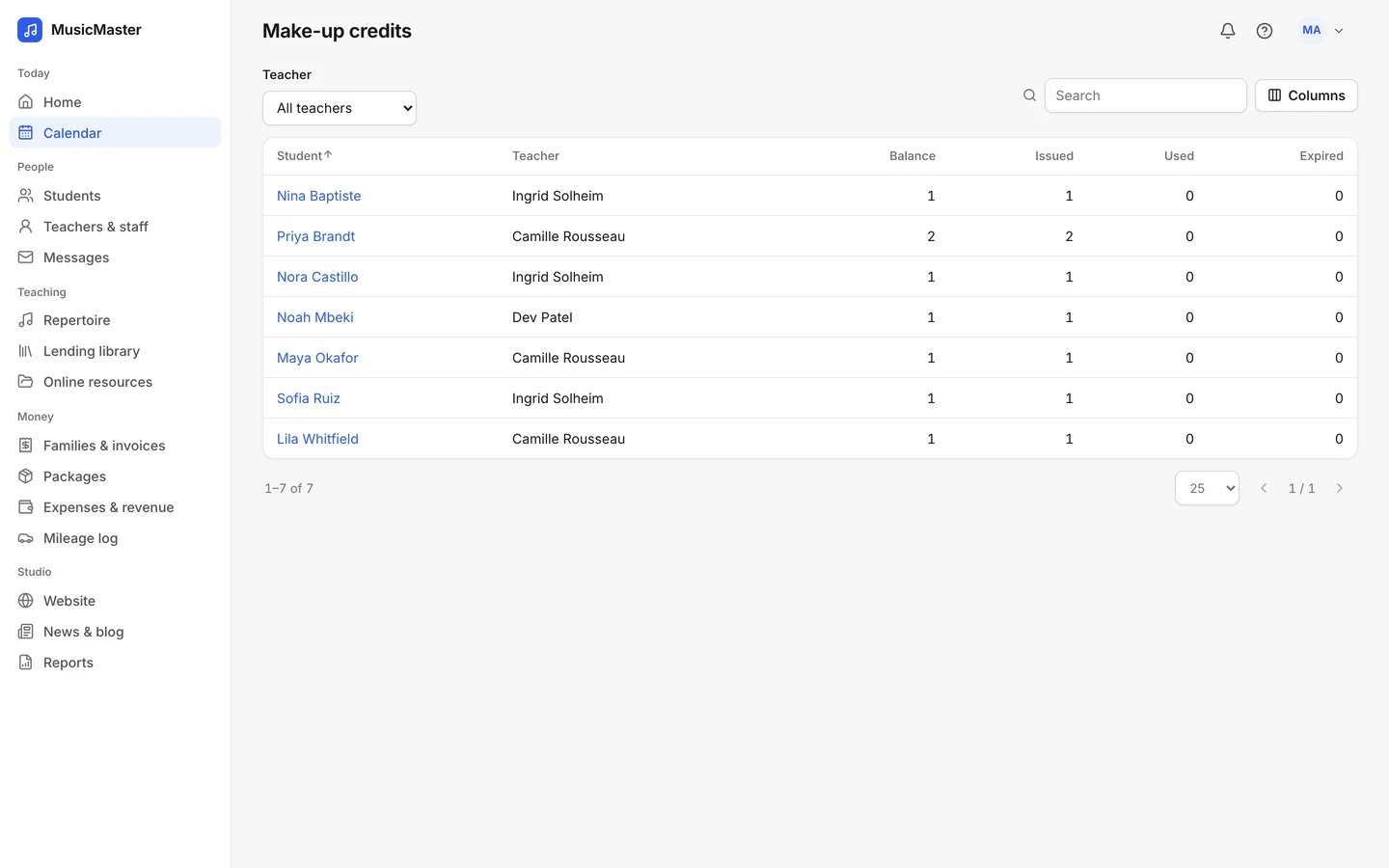
A credit is given when a status says so and spent when the student takes the make-up. Each student’s balance is kept for each teacher.
Limit how many credits cancellations in the portal can earn, and let unused credits expire after the number of days you choose.
Families see their credits in the portal and use them to book an open lesson, inside your rules.
A credit is given when a status says so and spent when the student takes the make-up. Each student’s balance is kept for each teacher.
Limit how many credits cancellations in the portal can earn, and let unused credits expire after the number of days you choose.
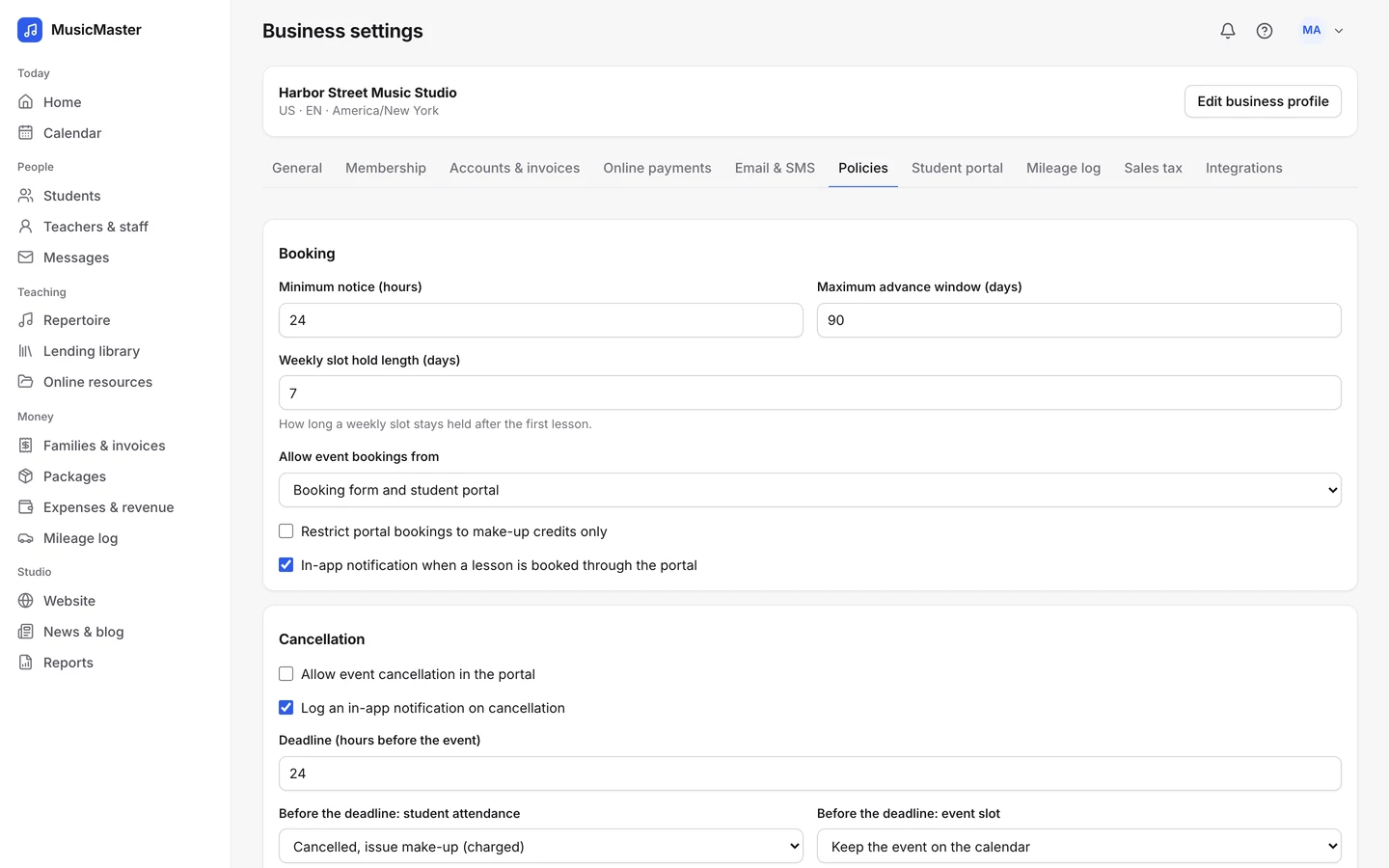
Families see their credits in the portal and use them to book an open lesson, inside your rules.
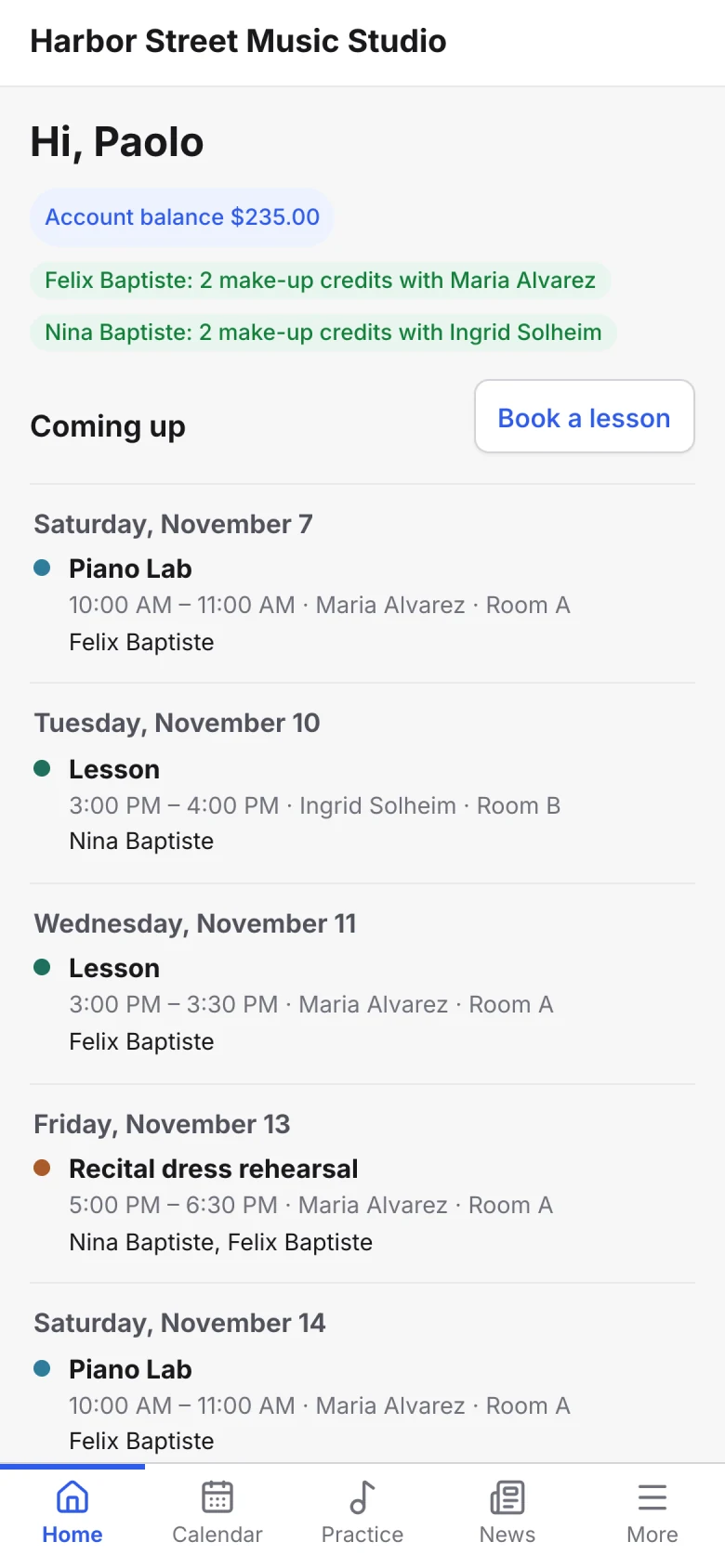
Overdue attendance
Lessons that ended without attendance show in an Overdue attendance banner, for each teacher and for the office.
Select all, set them as Present ($) and apply. Open any row to change one student.
Student attendance, Lessons taught, Billable hours and Make-up credits reports, as PDF or Excel.
Lessons that ended without attendance show in an Overdue attendance banner, for each teacher and for the office.
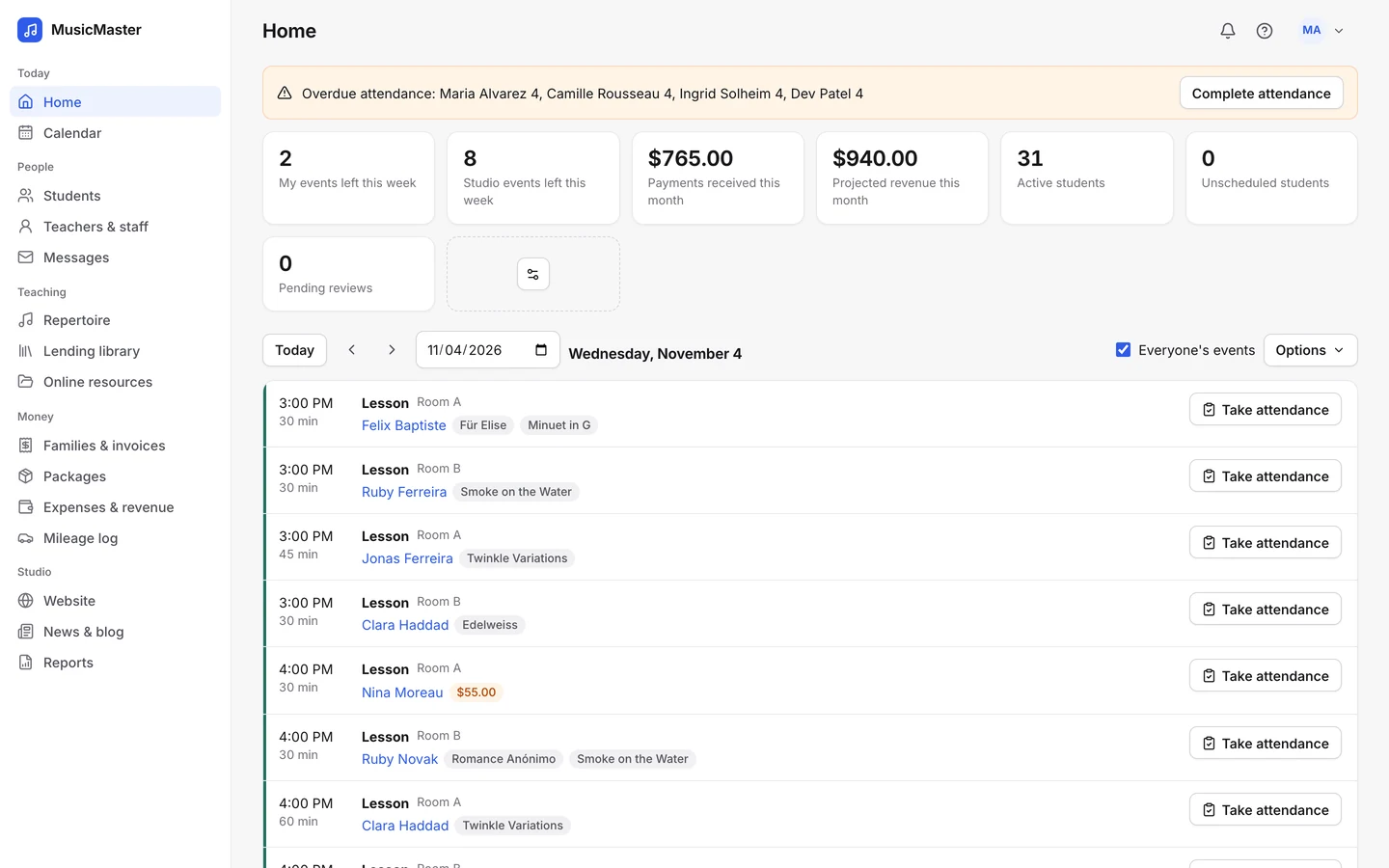
Select all, set them as Present ($) and apply. Open any row to change one student.
Student attendance, Lessons taught, Billable hours and Make-up credits reports, as PDF or Excel.
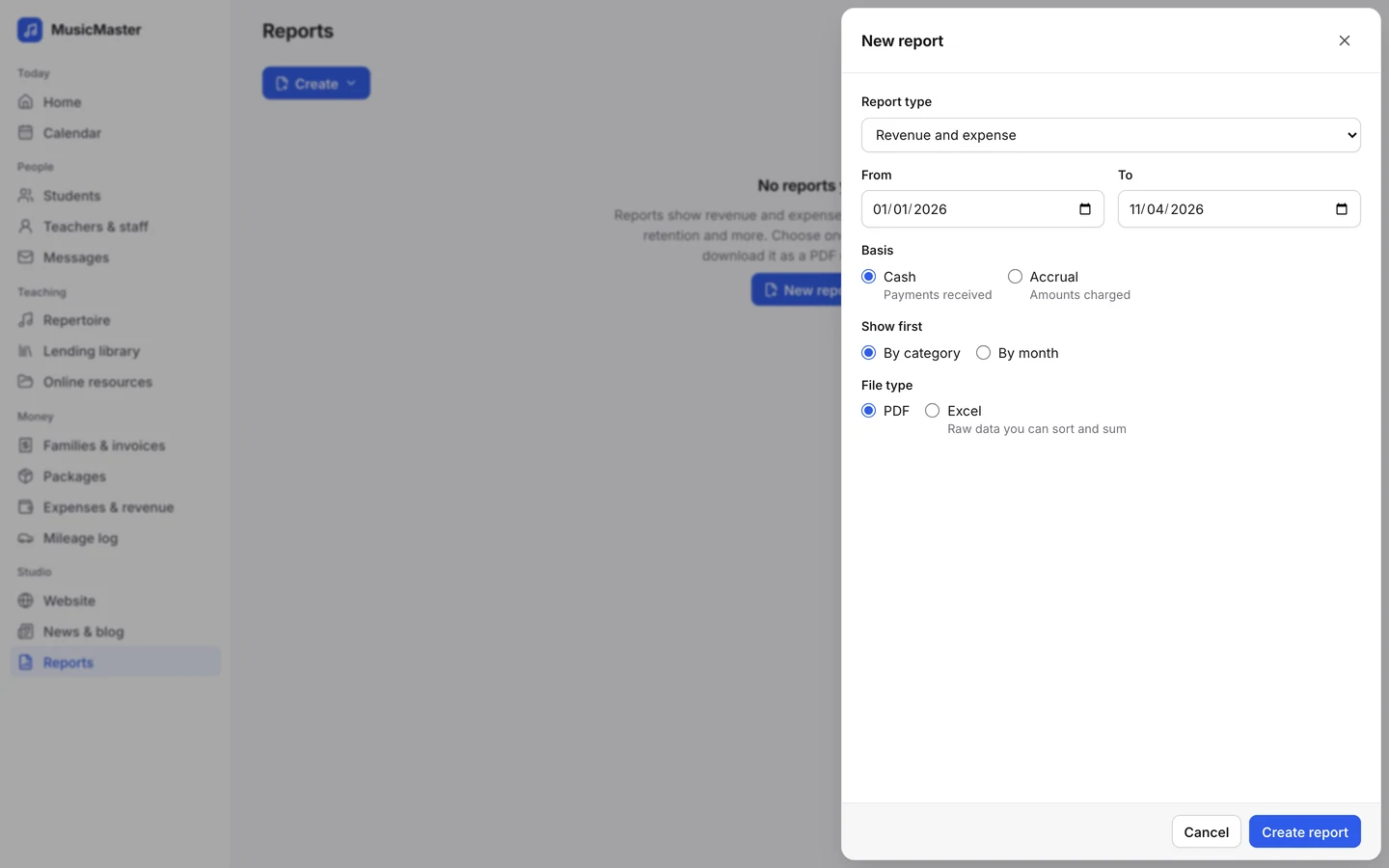
Cancellations
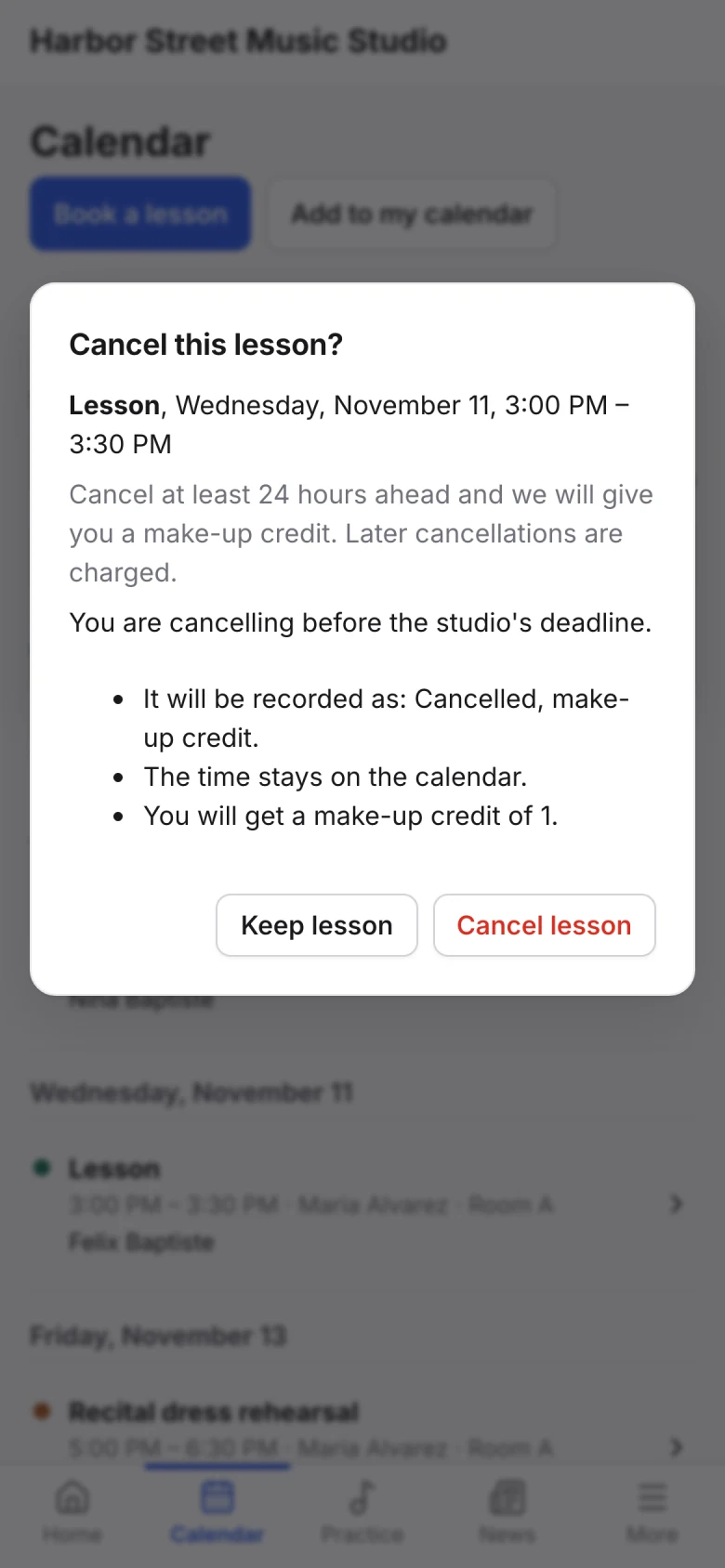
Allow cancellations in the family portal and set a deadline. Before it, a cancellation can give a make-up credit; after it, the lesson can still be charged.
Families read your policy, and see what will happen, before they confirm.
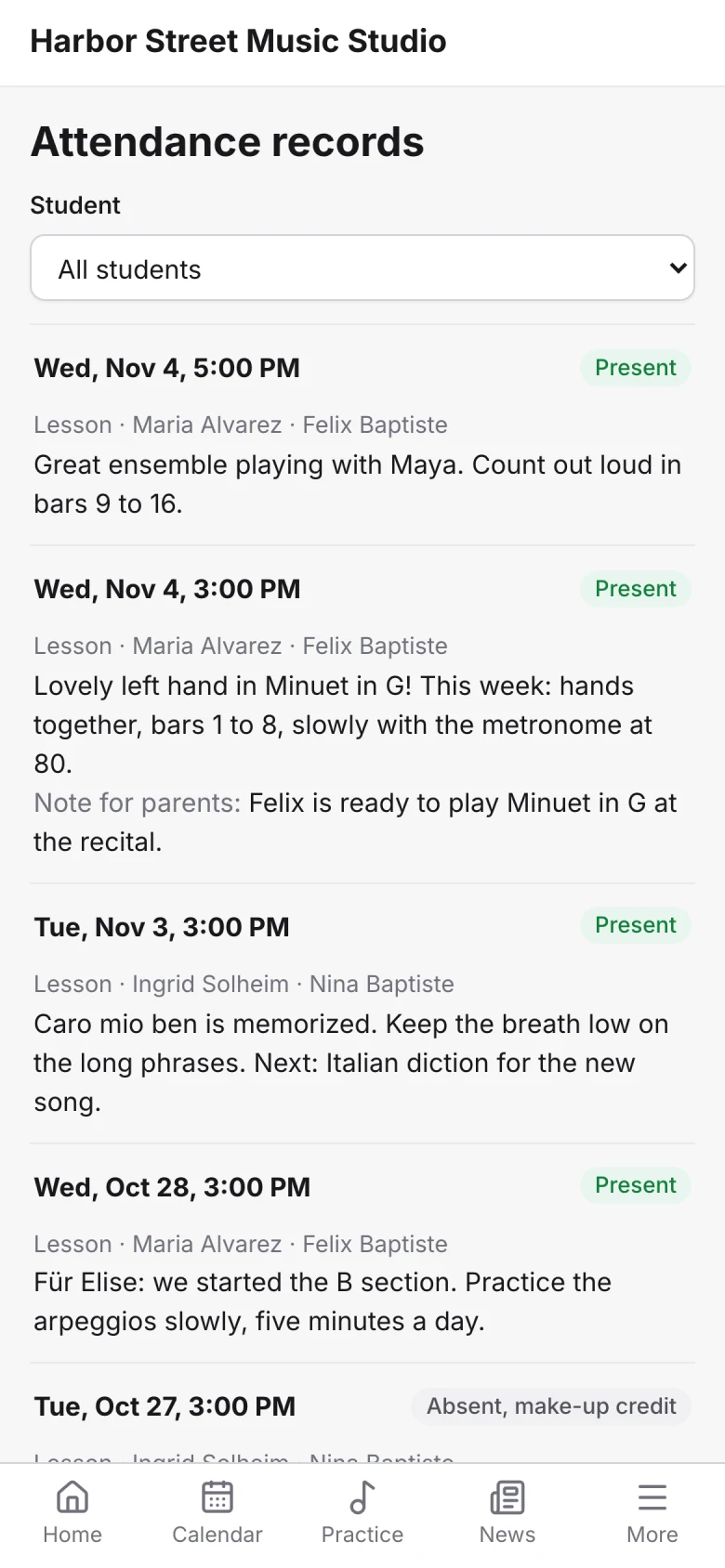
Attendance records
Parents see each past lesson with its status and the teacher’s notes in the family portal, so nobody has to ask what was covered.
One studio system
Each status flows into the family’s account, the teacher’s payroll and your reports, so you never type a lesson in twice.

Write one note for every student in a class, plus a private one.
Save the notes you write often and start from them next time.
Read a student’s earlier notes while you write today’s.
Send the notes to the student or parent when you save.
Change a status later, and the bill and the credits follow.
Record cash or a cheque taken at the lesson.
For anything else, contact us.
It depends on the status you choose. Absent, notice given takes the charge off. Absent, no make-up ($) bills it. Absent, issue make-up ($) bills it and gives the student a make-up credit for another lesson.
A credit is worth one lesson at the student’s usual length. Credits are counted for each teacher, can expire after the number of days you set, and show in the Make-up credits report and, if you like, in the family portal.
Yes. Change the status and Sonely undoes what the old one did to the bill and the credits, then applies the new one. Invoices you’ve already issued stay as they are; the family’s balance changes.
If you allow it. Turn on cancellation in the family portal, set a deadline, and choose what happens before and after it, such as a make-up credit or a charge.
Yes. Tick Paid at lesson in the attendance drawer and the payment goes on the family’s account.
Teachers with permission take attendance for the lessons they teach or cover, and admins can take it for any lesson.
Attendance is part of every Sonely plan, including the free one. Sonely is free for one teacher, and each extra teacher, admin or staff login is $12 a month. Students are unlimited.
Every lesson, every status
Included
See pricing
Look around a sample studio where attendance is waiting to be taken.
Open the demo studio
Ask us anything about running your studio on Sonely. Real people read and answer.
Contact us about SonelyEvery update we ship, in one place. See what changed in each release.
Read the changelog