Performances on the calendar
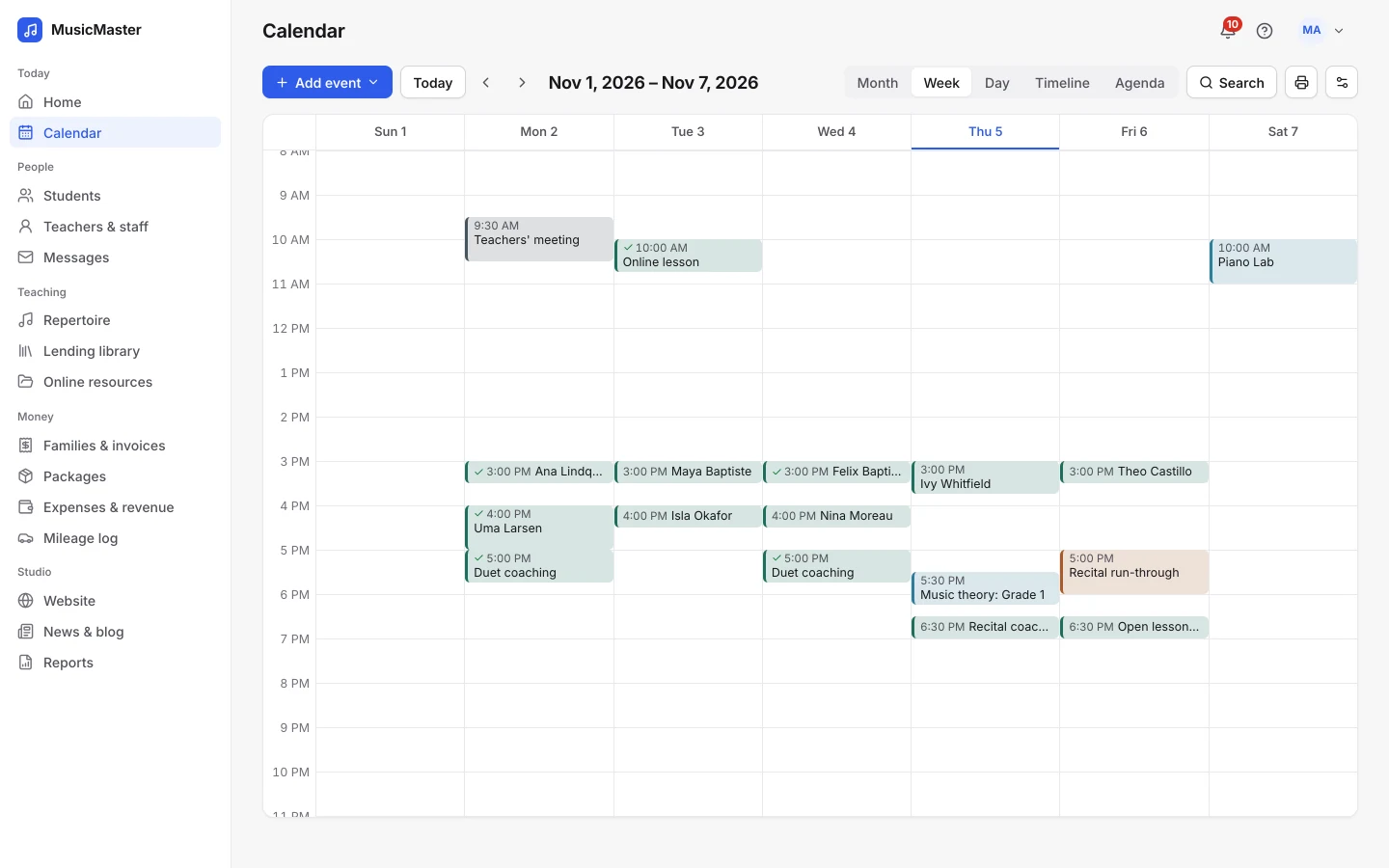
Add a performance to a piece a student is learning, and it goes on the calendar as an event.
Build a repertoire library, assign pieces to students, follow their progress and see the practice they log at home.
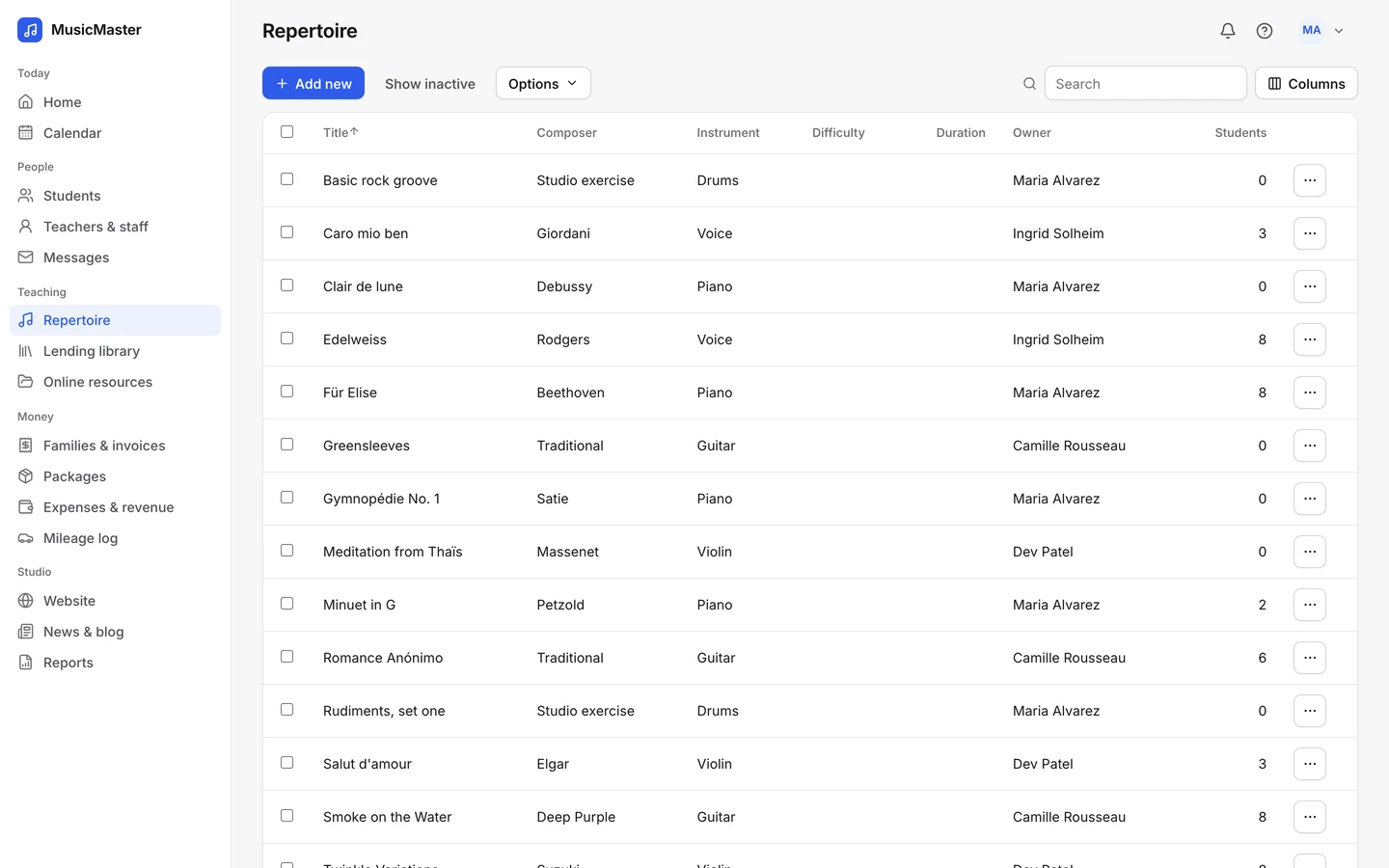
Repertoire library
Keep one library of the pieces your studio teaches, with composer, instrument, difficulty and duration.
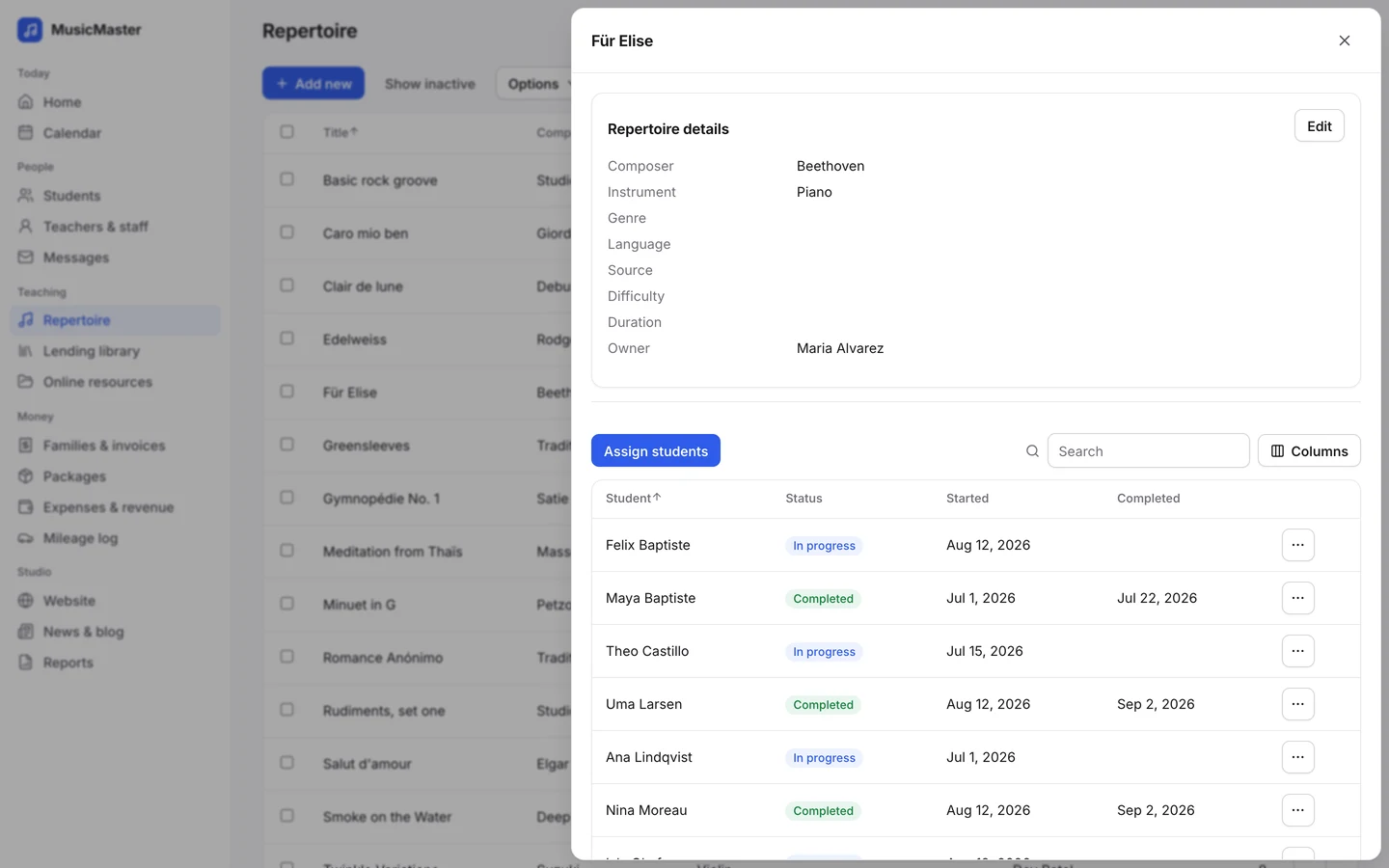
Give several pieces to several students in one go.
Recommended, In progress and Completed, with the dates.
General notes go to everyone learning a piece, student notes to one.
What each student has learned, as PDF or Excel.
Student repertoire
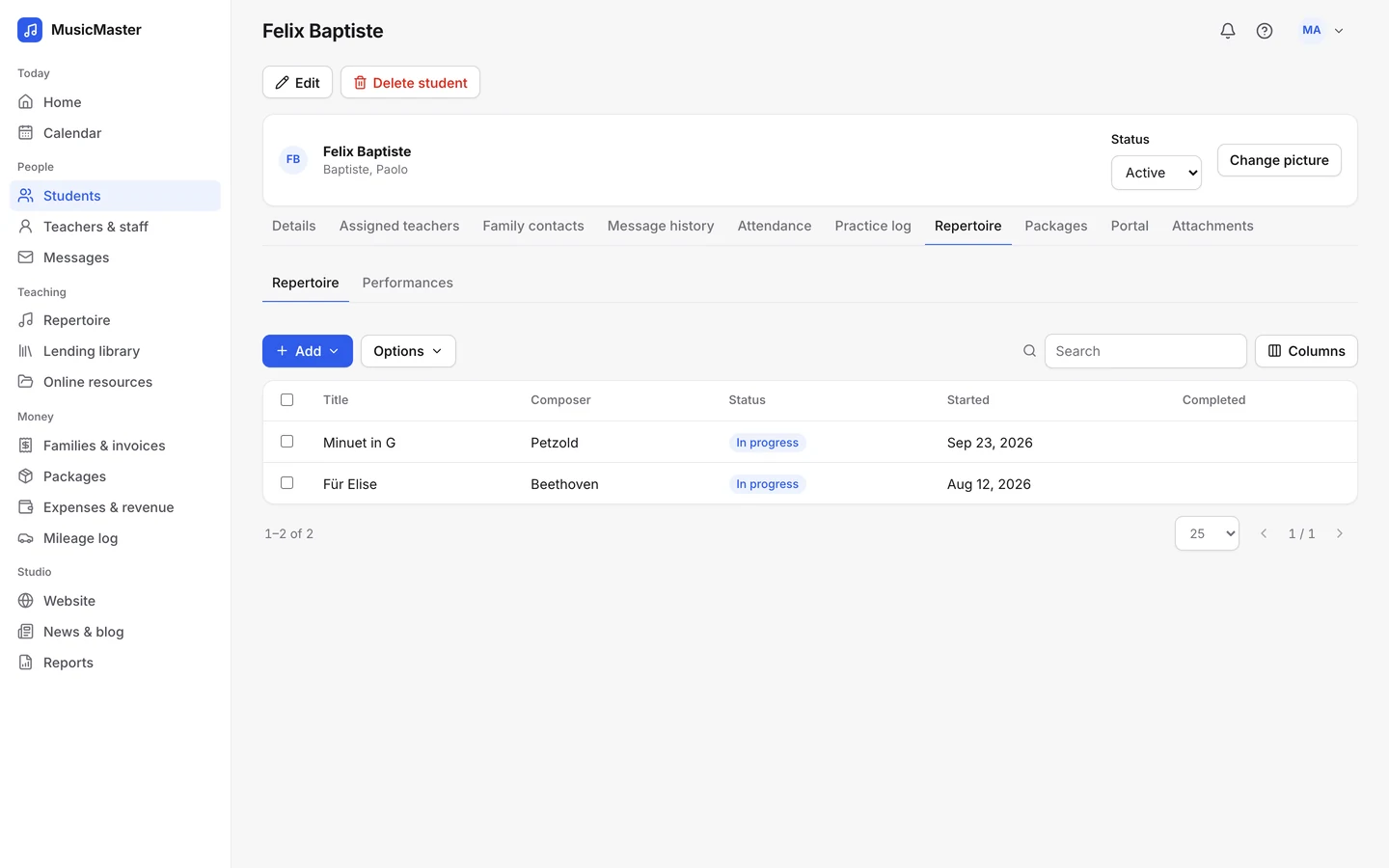
A student’s Repertoire tab lists what they’re learning, since when, and what they’ve finished.
Families see the same list in the family portal, with the notes you share.
Performances
Plan performances from the pieces students are learning, and keep the results with them.
Add a performance to a piece a student is learning, and it goes on the calendar as an event.
After the day, give the performance a grade and comments. They stay on the student’s Performances tab.
A recital is an event with several students, so attendance and notes work as for any class, and you can add a recital fee to each family’s account.
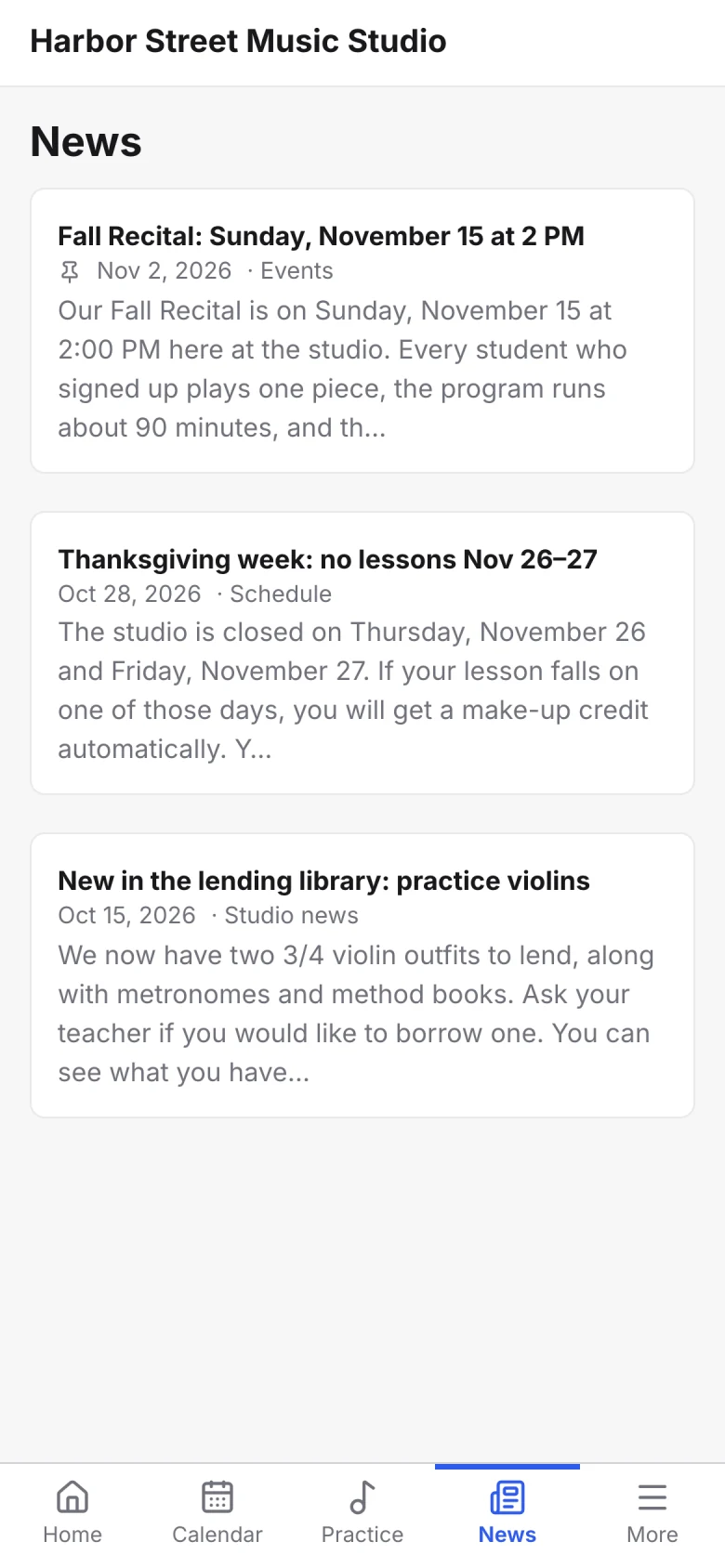
Post the running order to the family portal and pin it to the top.
Add a performance to a piece a student is learning, and it goes on the calendar as an event.
After the day, give the performance a grade and comments. They stay on the student’s Performances tab.
A recital is an event with several students, so attendance and notes work as for any class, and you can add a recital fee to each family’s account.
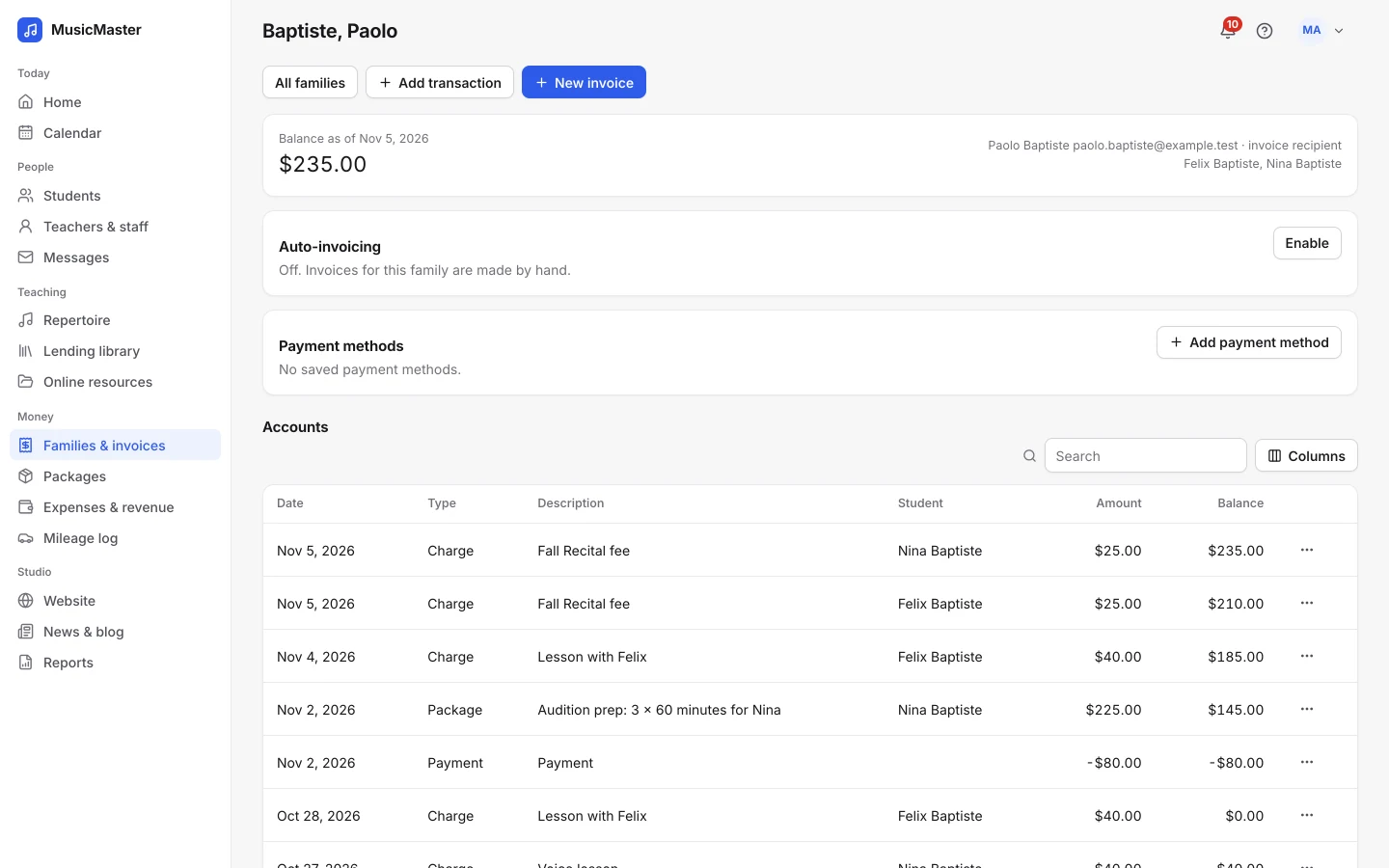
Post the running order to the family portal and pin it to the top.
Practice at home
Families log practice in the portal, and you see it before the next lesson.
Practice log
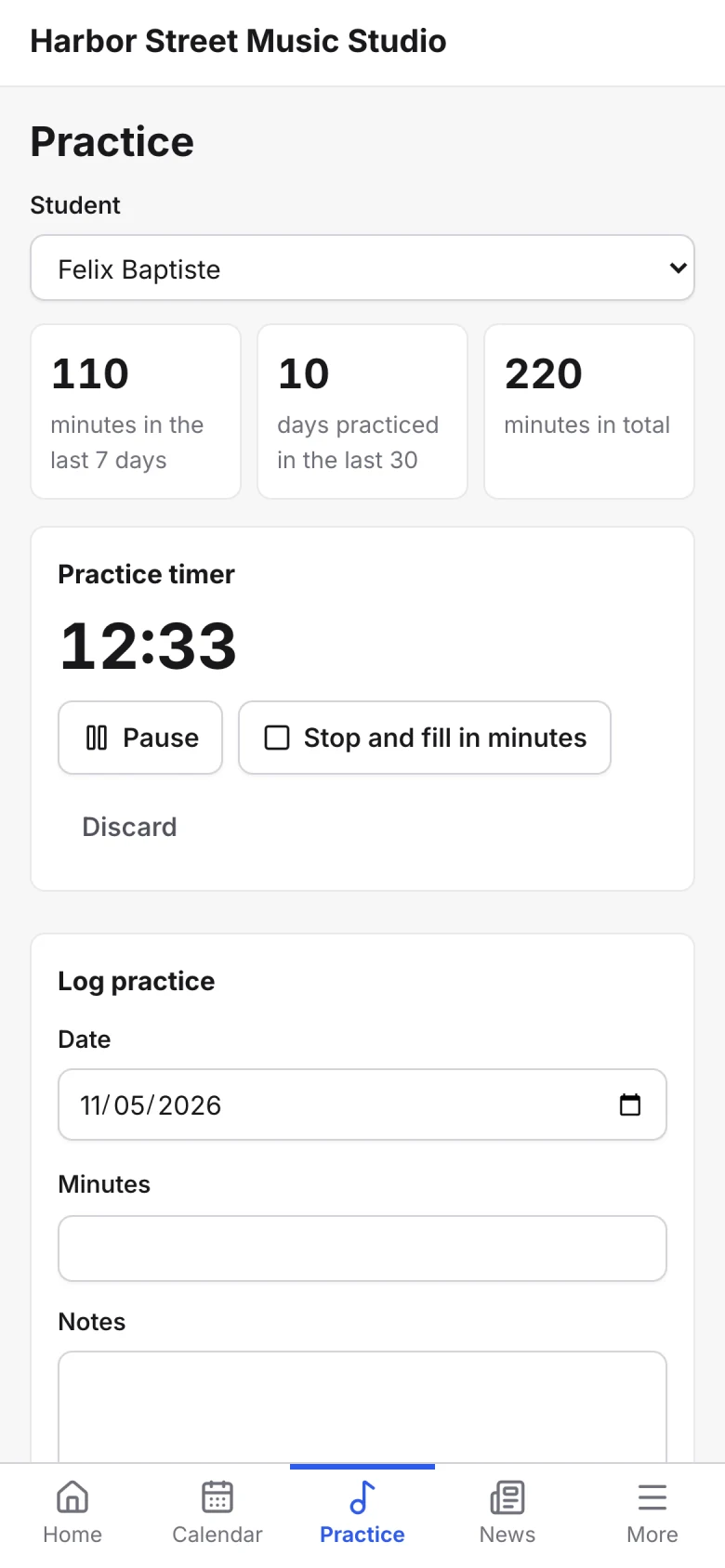
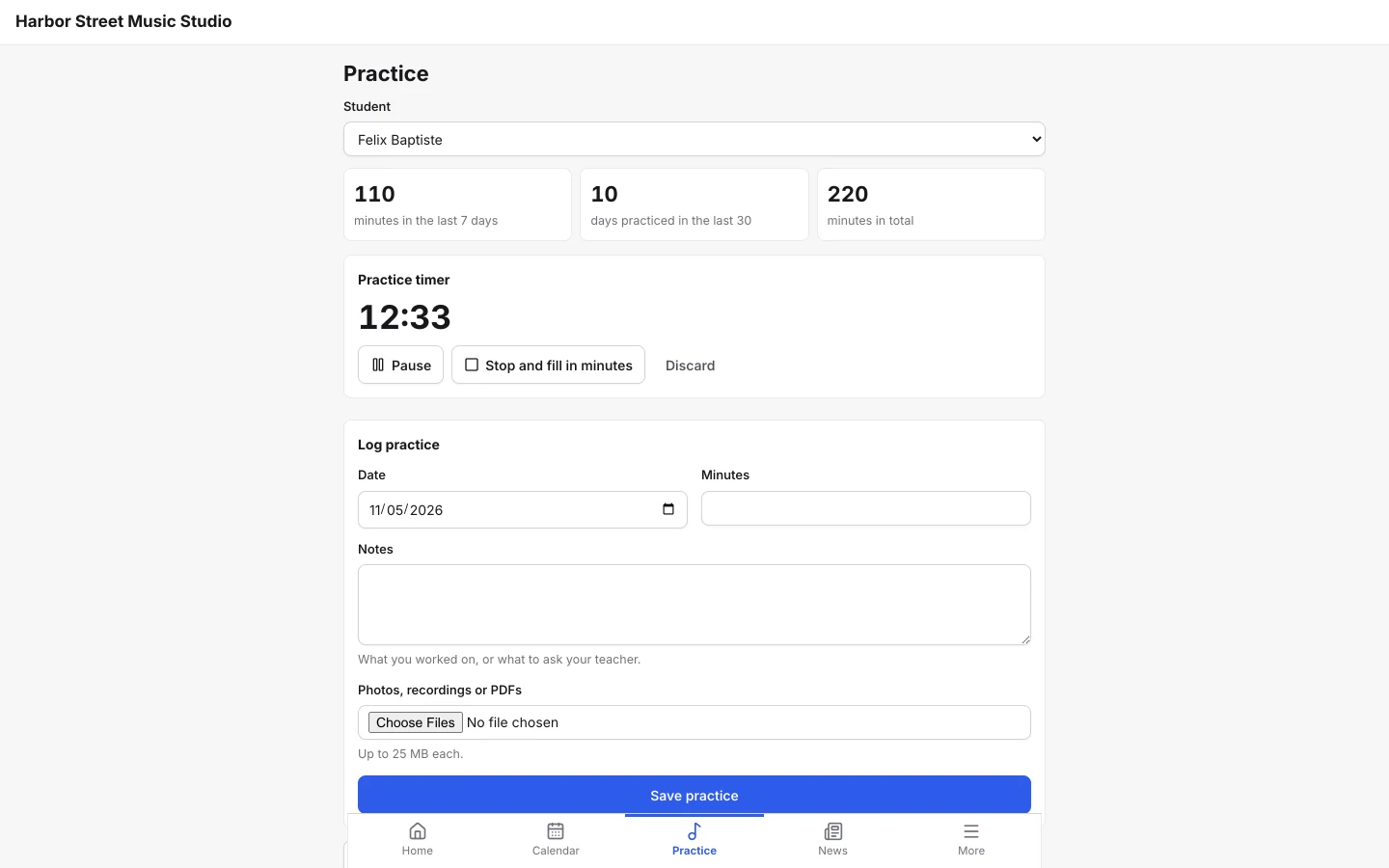
Students start the practice timer when they sit down, or add minutes by hand, with a note on what they worked on.
The log shows minutes in the last seven days, days practiced in the last thirty and the total so far.
Recordings and files
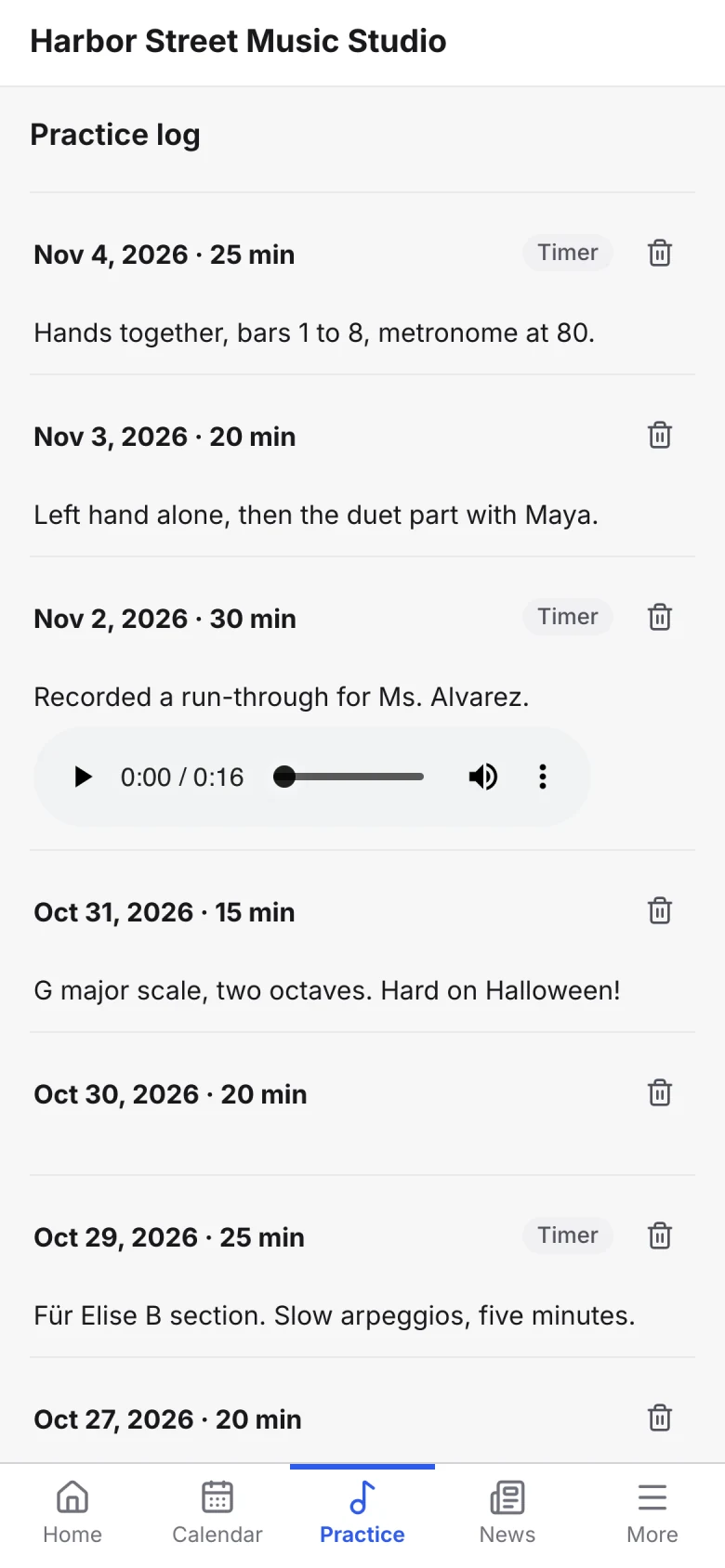
Students attach photos, recordings or PDFs to a practice entry for their teacher to hear or see.
If you allow it, families can email you straight from the practice log.
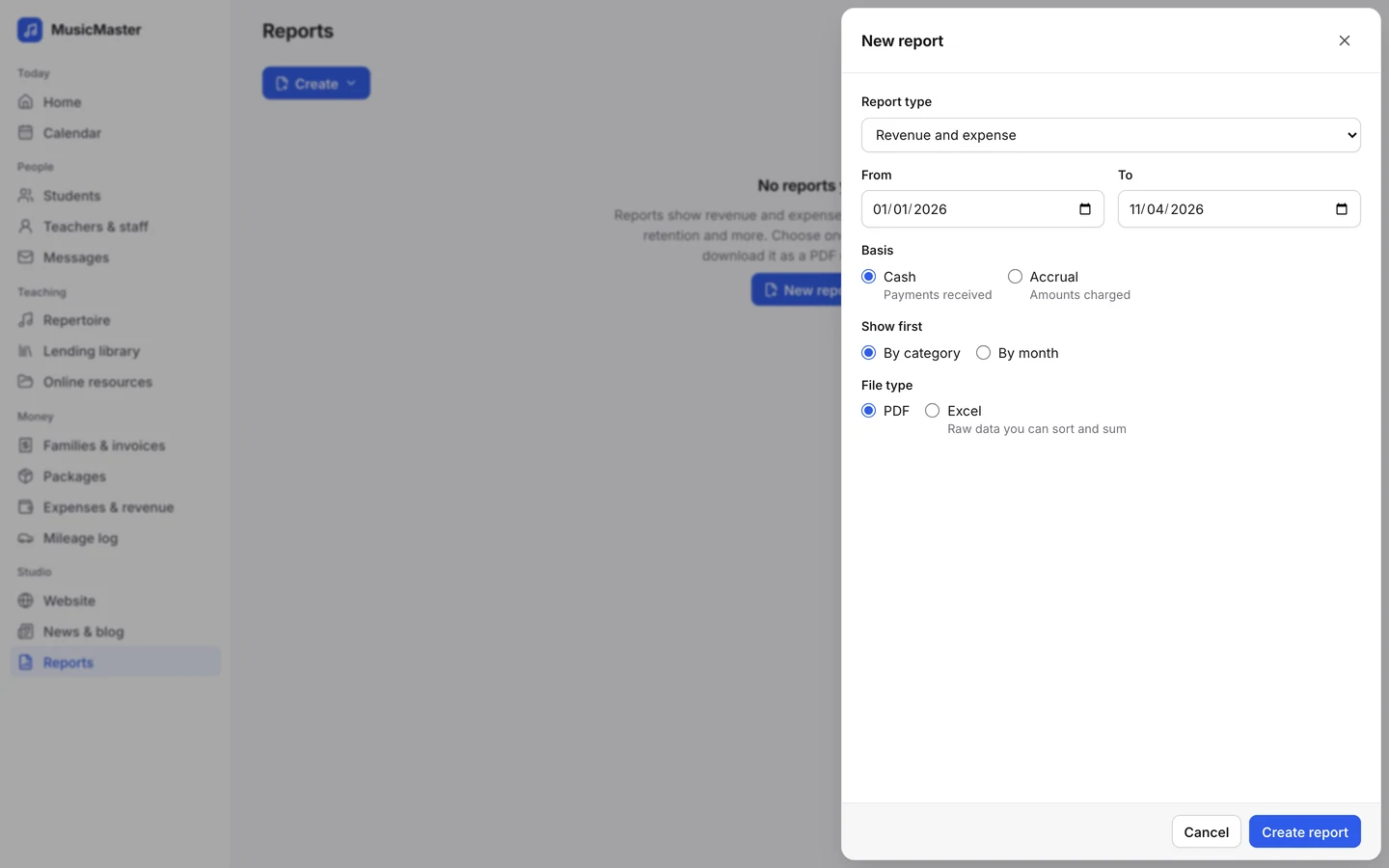
A report of the minutes each student logged over the dates you choose, as PDF or Excel.
Students attach photos, recordings or PDFs to a practice entry for their teacher to hear or see.
If you allow it, families can email you straight from the practice log.
A report of the minutes each student logged over the dates you choose, as PDF or Excel.
Lesson notes and resources
Notes and files that carry each piece from one lesson to the next.
Lesson notes
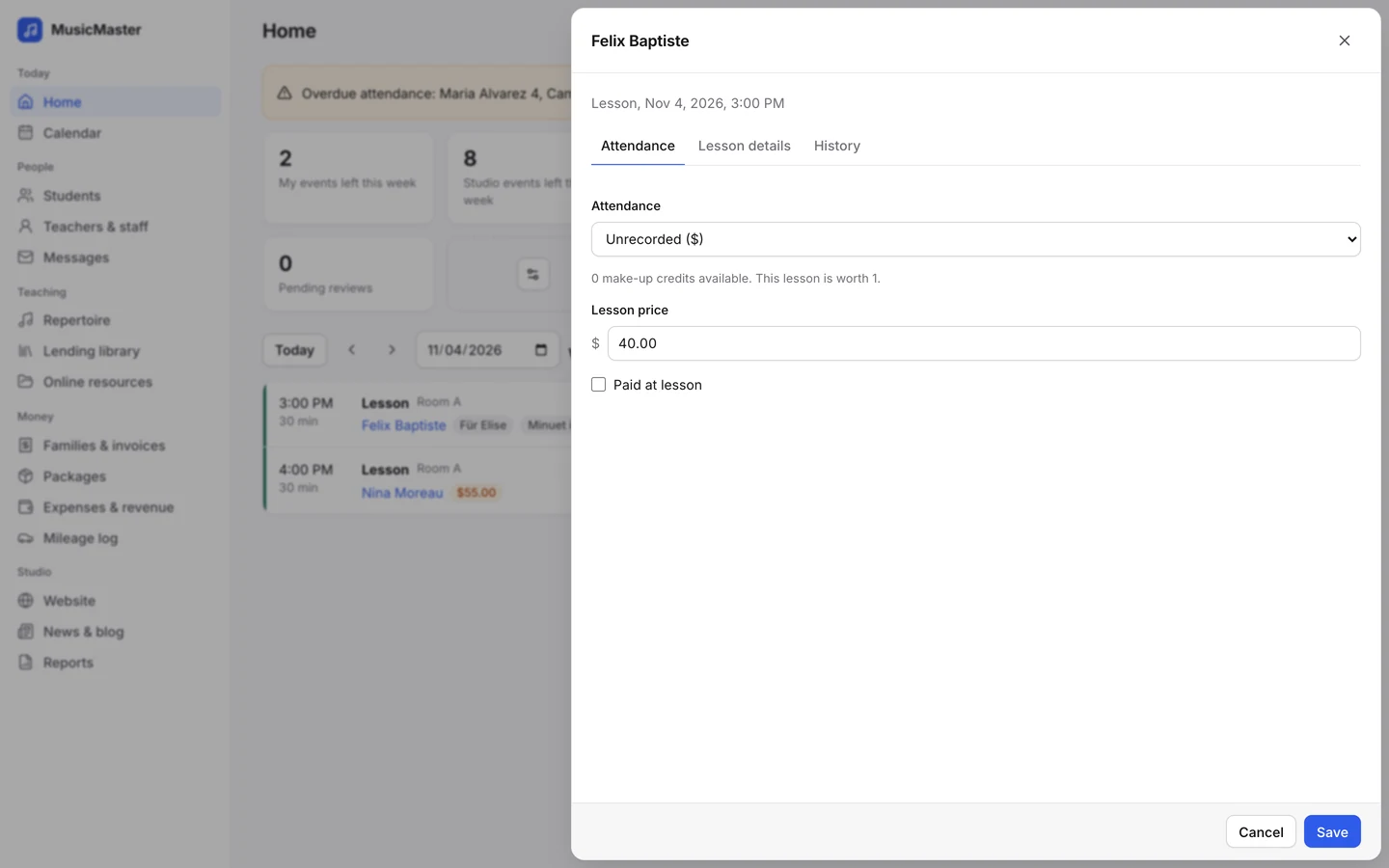
Open a lesson to write notes for the family and private notes for yourself, with the student’s earlier notes in the History tab beside them.
Assign a new piece from the same panel by typing its title.
Online resources
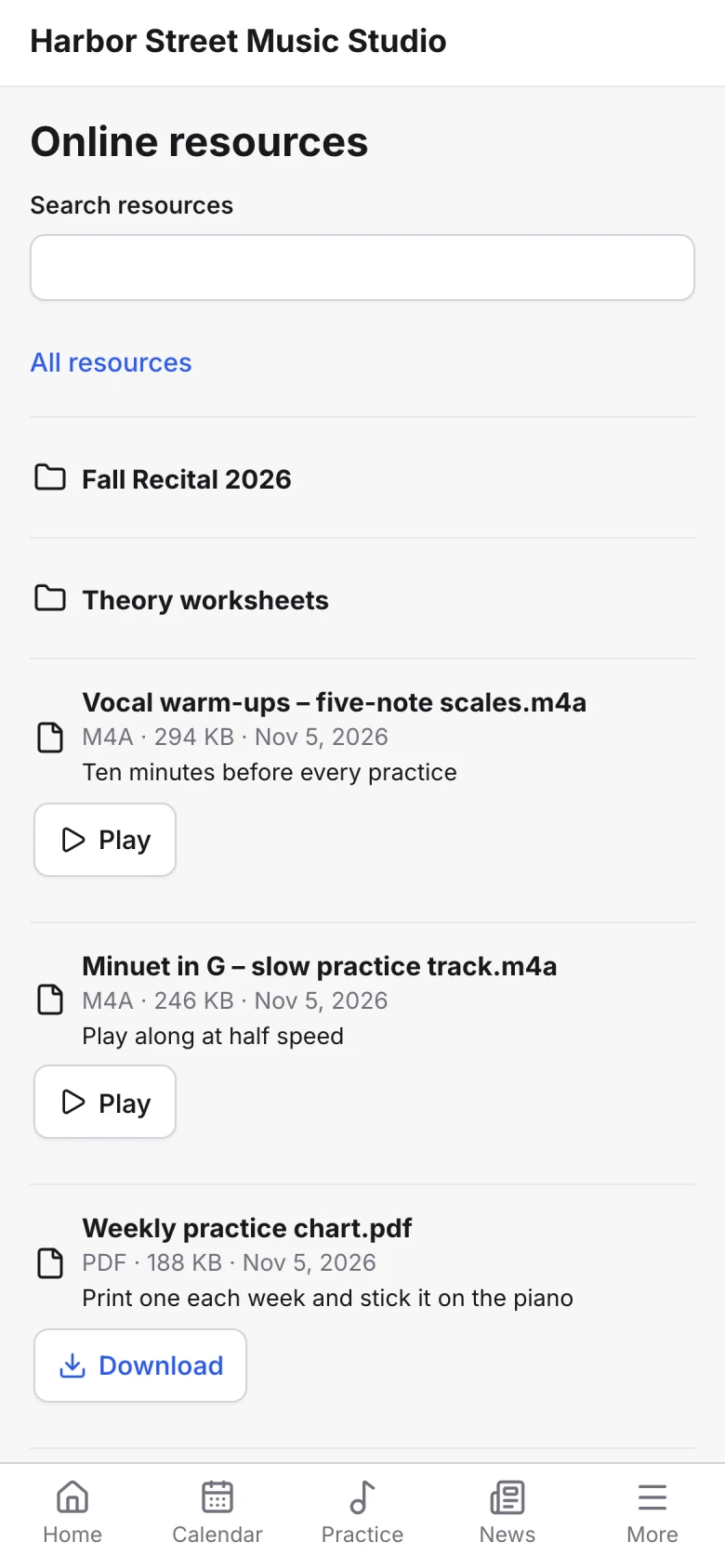
Put slow practice tracks, PDFs and videos in your teacher space and choose which students see them. Audio and video play right in the family portal.
One studio system
Pieces, practice and notes sit on the same student record as lessons, attendance and invoices, so the whole story of a student is in one place.

Library & resources lends books and instruments to students and shares files with families, in the same family portal.
See library and resourcesSearch the library by composer, instrument and difficulty.
See when each student began a piece and when they finished it.
Suggest a piece before the student starts it.
Paste a YouTube link into notes and it plays in the portal.
Give a student a new piece from the lesson panel.
Minutes practiced by each student, as PDF or Excel.
For anything else, contact us.
No. They log practice in the family portal from any phone’s or computer’s browser, with the timer or by typing the minutes.
Yes. A practice entry can carry photos, recordings or PDFs, and you see them with the student’s practice log.
No. You add the pieces you teach, with composer, instrument, difficulty and duration, and assign them from there.
Yes. The studio has one library, and each piece has an owner. Only the owner and admins can change a piece’s details.
If no student has it, it’s removed. If students have it, it becomes inactive: their progress stays, and it can’t be given to new students.
Yes. The family portal lists each child’s pieces with their status and the notes you’ve shared.
Repertoire & practice is part of every Sonely plan, including the free one. Sonely is free for one teacher, and each extra teacher, admin or staff login is $12 a month. Students are unlimited.
Every piece, every student
Included
See pricing
Look around a sample studio where students already have pieces in progress.
Open the demo studio
Ask us anything about running your studio on Sonely. Real people read and answer.
Contact us about Sonely
Every update we ship, in one place. See what changed in each release.
Read the changelog